
Mystery Read Alouds
One unique twist on this well liked read aloud activity is to incorporate a mystery reader into your routine. Just like you are missing your students faces, they are missing the faces of all the teachers and staff that they used to see every week. Here is a great way to combine read aloud books, a fun mystery, and the sharing of love.

PD, PLCs, and Support, Oh My!
Each week, Kat and Brian are working to provide a number of choices for PD, PLC discussions, and other support options each week. Our goal is to make sure you have the support you need when you need it. In this post, we’ll break down all three options at your disposal. Tuesday: All the PD Every Tuesday, you can attend any number of PD options available online. These are designed to teach a skill or tool to help you teach and communicate more effectively with students and parents. Brian and Kat split the load and offer sessions on the hour...

Message Students by Overall Course Grade in Canvas
The Canvas gradebook allows you to create quick email lists of students who don’t complete an assignment or score below a certain threshold. You can do the same but at the course level by total grade instead of assignment by assignment. In this example, we’ll send a message to students with a score below a 65% (failing). In your Canvas course, click on New Analytics in the left-hand menu. It’s probably toward the bottom of the screen. This page loads weekly activity in the course by default. Use the arrow at the top to change to Course Grade. This screen...
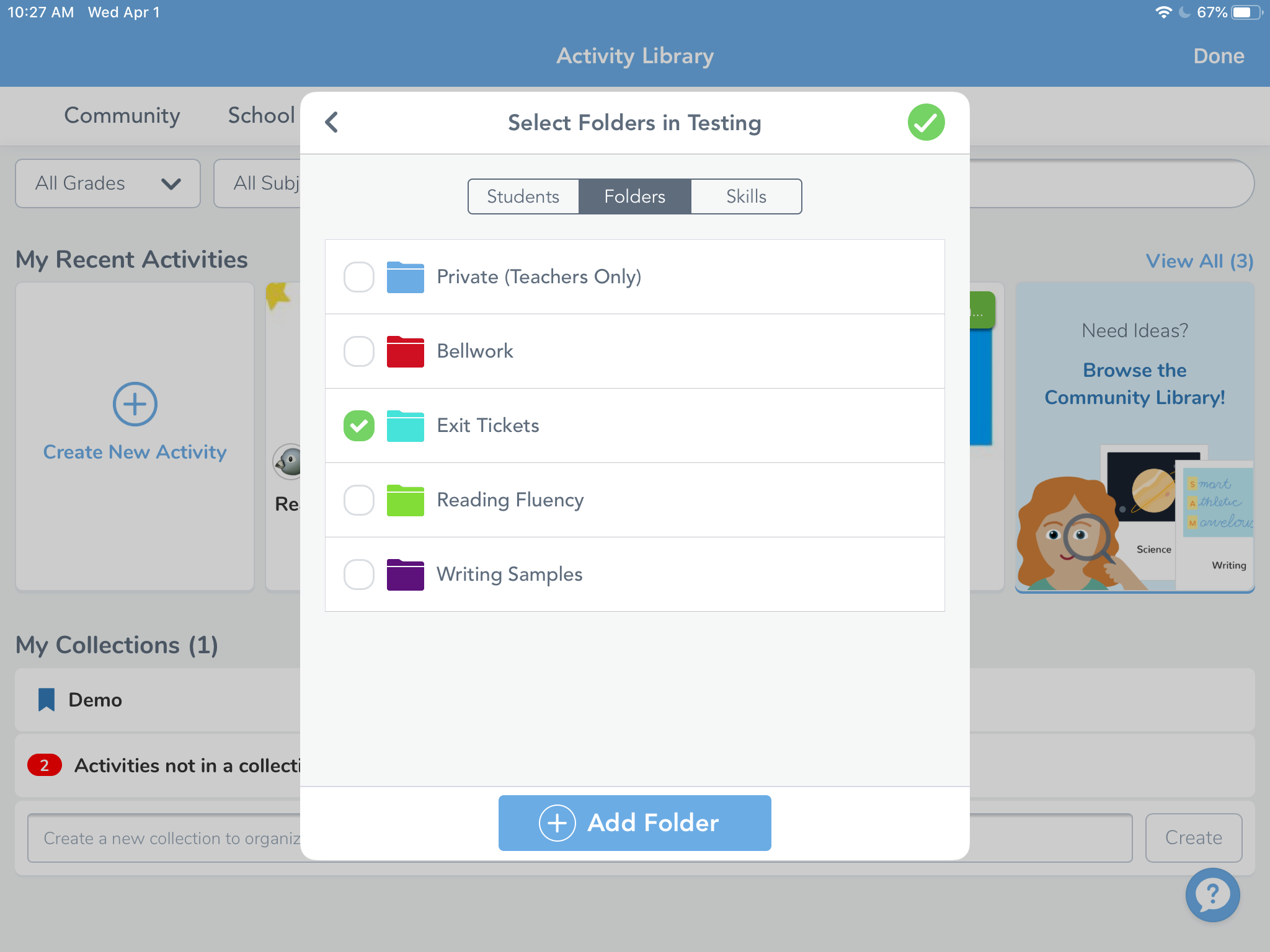
Organize Seesaw Activities and Student Responses into Folders
There are a couple of different ways you can organize your classes in Seesaw. One is by utilizing the unique classes already created through your PowerSchool accounts like Math and Reading. The other way is to use folders inside of one class or you can use of combination of the two. Once inside a class, Seesaw allows you to create folders for student work and activities. This is helpful for grouping student tutorials, anchor charts, or larger topic based materials. Teacher and student work can also be sorted into leveled activities for students based on reading or math level, English...

Using the New Kahoot Single Player Mode
By now everyone has more than likely either used Kahoot in their classrooms or been a part of one in a PD. Did you know there is a new feature that allows your student to play individually at home? It’s called Challenge Mode and I’ll give tips and examples of how to use it in this post. Getting Started If you already have a Kahoot account, you and sign in and take advantage of their Premium upgrade. If you don’t have an account, head over ot Kahoot and sign in with Google and then upgrade to Premium. We’re not going...

Supporting Independent Reading with Book Talks
Holding kids accountable for their reading at home (or even in class) is always a challenge. Kids are getting better and better at “fake reading” and are often unfocused. Even having parents sign a piece of paper saying their child read for 20 minutes is unreliable. Having children record themselves talking about their reading can be a new way of holding kids accountable for their reading. Book Talks Using the Camera It’s important to make sure the book or passage your student intends to read is at their independent reading level. This especially true given that we’re all working at...
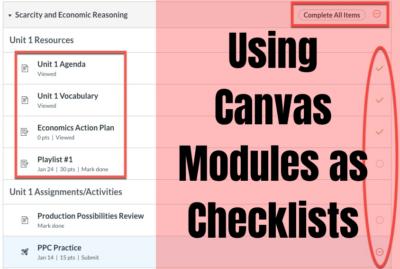
Using Canvas Modules as Checklists for Students
Now, more than ever, it’s important that we encourage executive functioning in our students. Thankfully, Canvas has a number of features that can help facilitate these skills. For many people, a “to do list” is an effective way to stay on task and the reward of crossing items off our to do list is intrinsic. Canvas automatically generates a to do list for students based on what items are due each day. However, you can customize this for your students and allow them to check items off their list in just a few easy steps. Organize in Modules If you aren’t...

Setting Healthy Boundaries for Online Learning
As we wrap week one of being an online school, the biggest concern we’re hearing from teachers is that boundaries are much more difficult to define and keep. I’m going to touch on that tension and where it comes from and then give some practical tips you can use to set and maintain healthy boundaries for online teaching. The Conflict Working from home introduces a number of conflicting obligations to the work day. Prep and grading aside, our own kids are working at home, we have to contact students or parents individually, and we need to make sure we’re available...
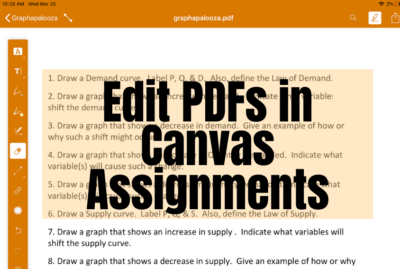
Edit PDFs in Canvas Assignments
There are many ways to share information with students through Canvas. One strategy that is easy and seamless is to allow students to annotate over documents in Canvas. This allows students to open the document, annotate over it with text tools, and easily submit back to the assignment…no downloading, copying, sharing, or paper and pencil required! If you want to try this with your students, read on for instructions. Create the PDF The first step is turning any document you want to share into a PDF. If the document is something you have created in Word or Google Docs, you can...
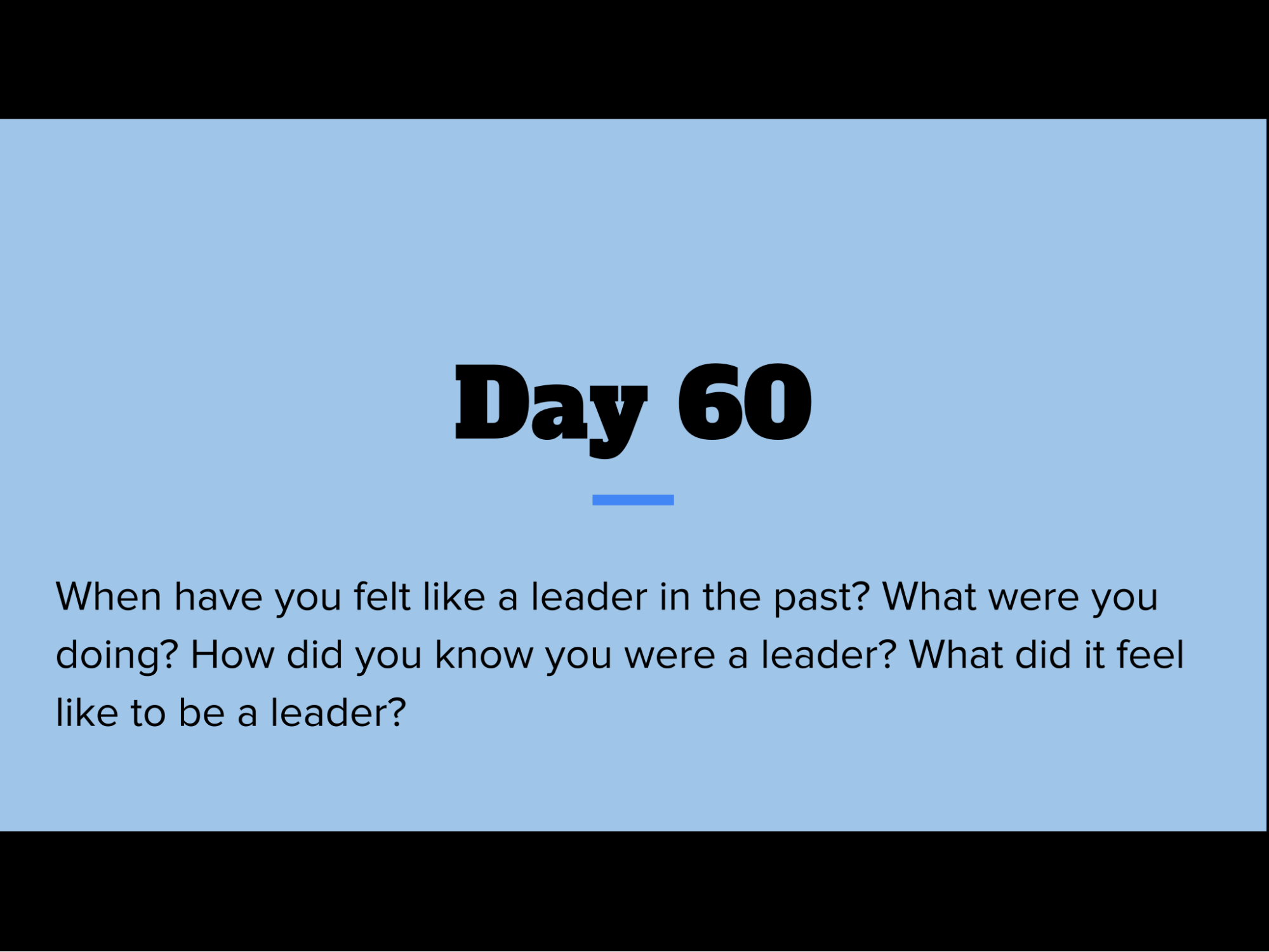
Using Seesaw as a Daily Journal
I assign a discussion questions daily for my students to answer in our “morning work” time before specials. The purpose is to get students writing, first thing in the morning, about different topics. I have gradually increased and expanded the expectations as we get further into the year, layering different skills as we go. Make sure you have capital letters and ending marks. Make sure to have at least 4 sentences Make sure to restate the question Add transitional words Add a conclusion By expanding the required elements slowly, I am able to help students improve each individual component rather than overwhelming...
Creating Templates for Explain Edu Videos
A blank white canvas is nice sometimes, but if you’re asking for student responses in video form, it can be helpful to have some kind of template for their response. This would be easy using AirDrop (if we were in school), so how do you create and send templates while we’re all working from home? If you’re wondering if there is a video, you bet there is. Start with Google Slides Explain Edu allows you to import files to use as slides in your projects. In this post, I’ll show how to import some Google Slides you already have prepared...
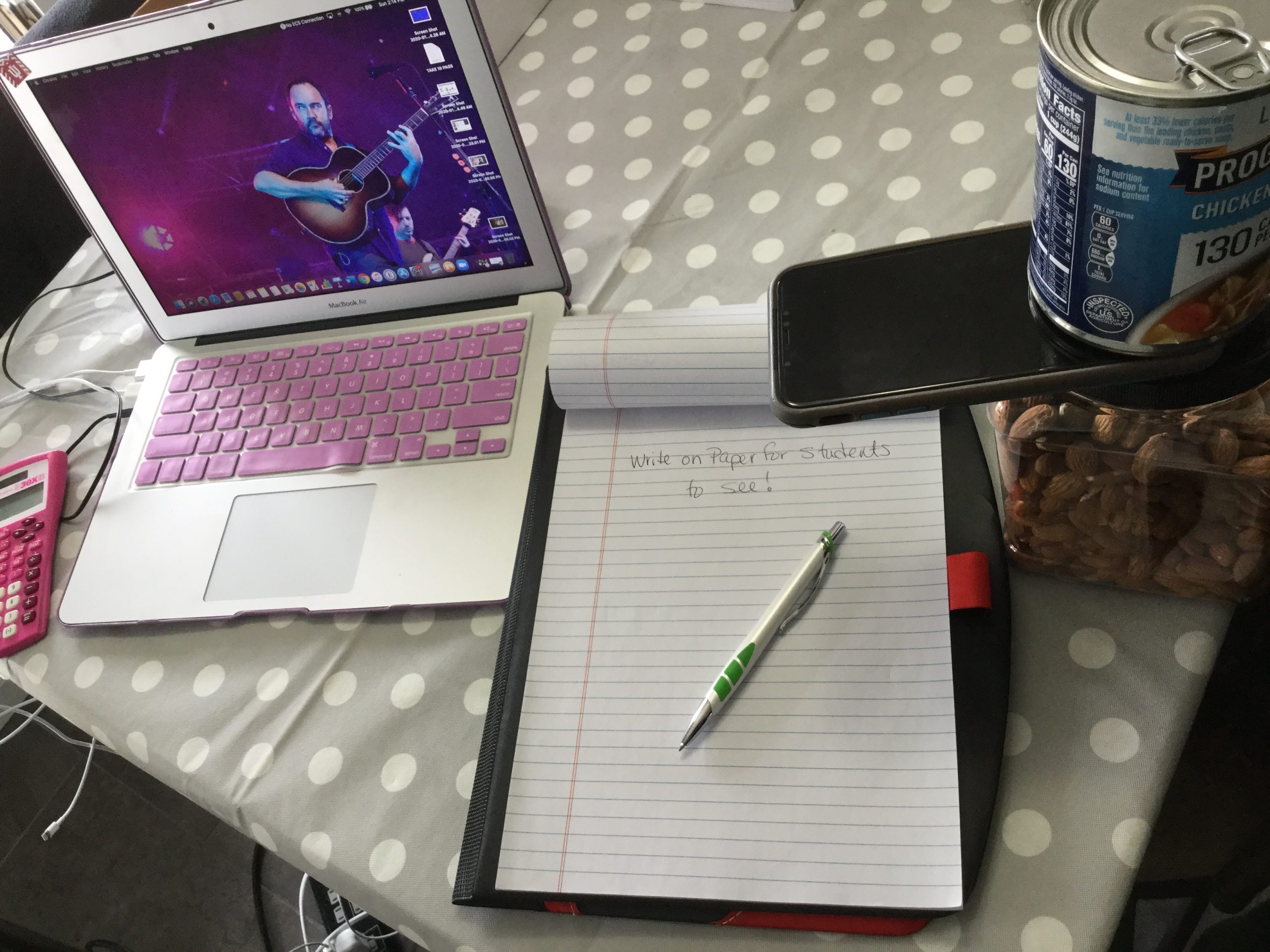
Using a Second Camera in a Google Meet
If you haven’t been utilizing Google Meet for eLearning with your students, now is the time. It allows you to have real-time communication with students (or groups of students) and will help you build and sustain the teacher/student relationship while we’re out of the building. We already have resources prepped to get you started with Google Meet. If you’re looking for more, Google has provided a range of help articles to get you up and running. Starting Tips Make sure you give the meeting a nickname every time. Doing this ensures that once all students disconnect, students are unable to rejoin...

Problem Solving While Working from Home
Our new reality has started and we’re in eLearning for the long haul! Fear not, though. Instructional Tech and Tech Services are here to help everyone. In this post, we’re going to look at some ways to manage problem solving while we all practice social distancing. If an issue arises during eLearning (and they will), we suggest using the following problem solving steps. Using these steps before going to a member of the instructional technology team or technology department helps ensure that we have enough time to handle the new issues that come up each day. Remember, your building technology ambassador is...